
Creating and managing an expert channel
Learn how to create and manage the expert channels available in your Workspace
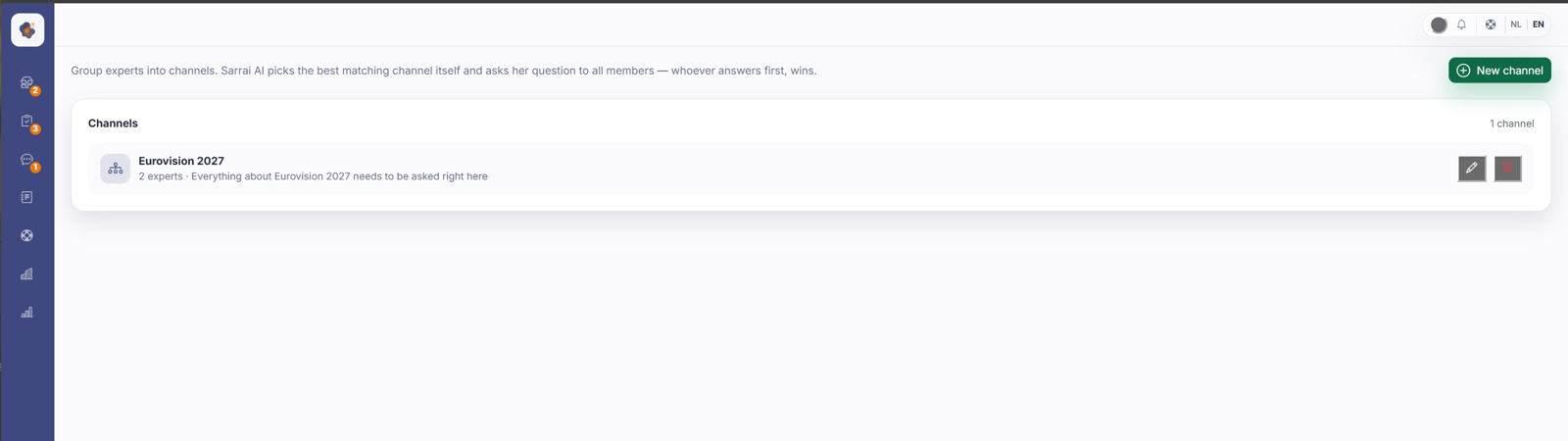
Short answer: go to the Expert channel and click Manage channels at the bottom (or open Settings, then Expert channels). With New channel you create a shared channel; on an existing channel you use the pencil to edit and the red icon to delete.
Step by step
- Open the Expert channel and click Manage channels at the bottom left. (Or go straight through Settings, then Expert channels.)
- Click New channel at the top right to create a shared channel, for example around a topic like Delivery & Returns.
- Add the experts who are allowed to answer questions in that channel.
- On an existing channel, change the members with the pencil icon, or delete the channel with the red icon.
Good to know
Sarrai picks the best-fitting channel for a question herself, so a clear breakdown by topic pays off. Give each channel a clear description, because that field steers the AI's choice. And add members right away: a channel with no members is skipped.
Two settings decide whether any of this works at all, and they sit under Chat settings, then Expert channel: the main switch ask a colleague (if that's off, nothing here does anything) and the timeout (two minutes by default, how long Sarrai waits for a colleague before she escalates to a human after all).
Two more things: only an admin can manage channels, and a content manager can be a member and get notifications but can't open the feed, so don't set someone like that as a channel's only member. You'll also find channel management under Administration and settings.
Also searched as
"create a new expert channel", "add experts to a channel", "delete a channel", "where do I manage the expert channels"
See also
Was this article helpful?
Your feedback helps us improve this article.
Thanks for your feedback!
