
Searching and filtering conversations from the inbox
By filtering the conversations in the inbox, it's possible to find conversations more quickly.
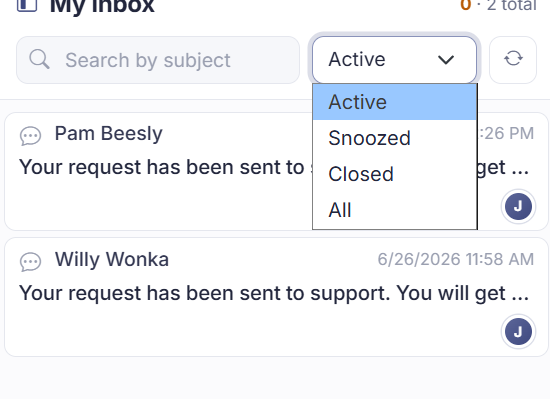
Short answer: type in the search box above the conversation list to search by subject or message, and use the filter next to it to narrow by status (Active, Snoozed, Closed, or All).
Step by step
- Go to the Inbox. Above the list in the middle is the search box Search by subject.
- Type a word from the conversation or the subject. The list narrows to what matches.
- To include closed or snoozed conversations too, set the filter next to it to Closed, Snoozed, or All.
Good to know
If you can't find an older conversation, it's probably set to Closed. The filter defaults to Active, so you only see closed conversations once you switch to Closed or All.
To search within one team inbox, switch to that inbox on the left first (First Line, for example). Searching and filtering then work within that list. The search term is applied on top of your current view as well as the status filter.
Worth knowing what you do and don't search. The search bar looks through the title, the escalation reason, all messages (including internal notes), and the name of the linked contact or company. But not the email address, the phone number, or the job title. To find someone by email address, go through the CRM and open the contact from there. The list shows up to 250 conversations; for more, refine by status or search term.
Also searched as
"find an old conversation again", "search a chat by keyword", "search closed conversations", "filter by status"
See also
Was this article helpful?
Your feedback helps us improve this article.
Thanks for your feedback!
