
Team inboxes: what they are and how to use them
Team inboxes allow you to share conversations with your team members and handle the incoming conversations together.
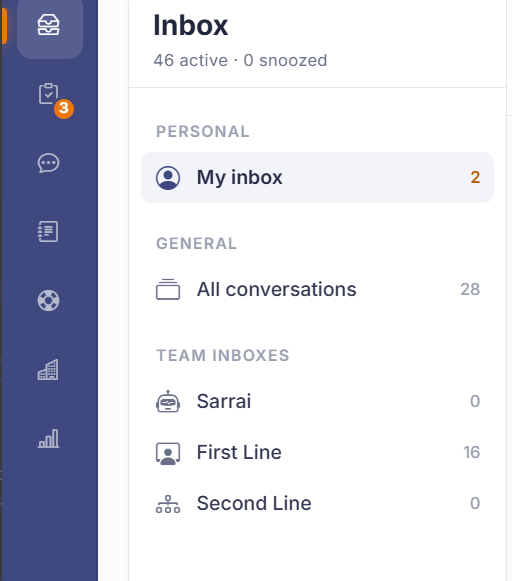
Short answer: on the left of the Inbox are three parts: My inbox (conversations assigned to you), All conversations (everything coming in), and Team inboxes (shared queues like First Line and Second Line).
The three parts
My inbox shows only the conversations assigned to you. This is your own work list.
All conversations shows everything coming in, regardless of who it's assigned to. Handy for an overview or when someone needs to step in.
Team inboxes are shared queues your team handles together, First Line and Second Line for example. A conversation that lands here can be picked up by any team member. The number next to each inbox shows how many conversations are waiting.
Good to know
A conversation ends up in a team inbox because Sarrai or a colleague forwards it there, or because it's set up that way. Who sees such a shared queue depends on the teams a person belongs to, which you manage in the settings.
A typical split is a first line that catches the ordinary questions and a second line for what needs specialist knowledge. Sarrai already catches the repeatable questions automatically.
Two things that often surprise people. Assigning a conversation to a team pings nobody. Teams work on "whoever looks first picks it up", so count on the habit of watching the team inbox, not on a notification. And colleagues who aren't members of a team still see the team conversations in All conversations; they just can't answer them (an admin can).
Also searched as
"difference between my inbox and all conversations", "what is a shared inbox", "who sees which conversations", "first line and second line"
See also
Was this article helpful?
Your feedback helps us improve this article.
Thanks for your feedback!
