
Assiging a conversation to yourself or a colleague
Make sure it's clear who's responsible for the conversation by assigning a colleague or a team.
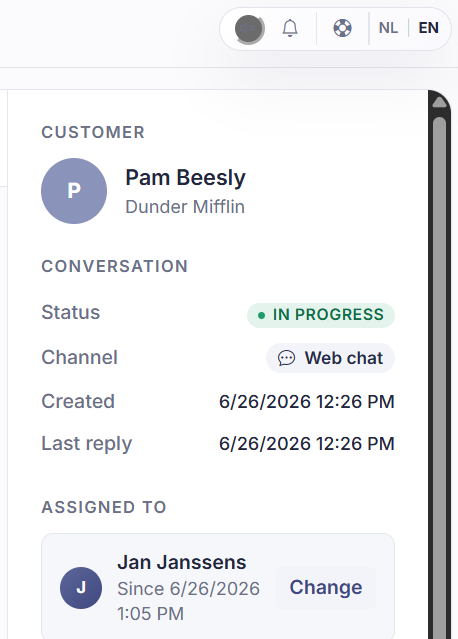
Short answer: open the context panel to the right of the conversation, click Change under Assigned to, and pick yourself, a colleague, or a team. That way it's always clear who's picking the conversation up.
Step by step
- Open the conversation. If the right panel isn't open, click the panel icon at the top to show it.
- In the panel, find the Assigned to block. For a new conversation it says Not assigned.
- Click Change.
- From the list, pick a colleague (under Colleagues) or a team (under Teams).
Good to know
Assigning doesn't move the conversation out of All conversations. It only makes clear who's responsible. If you assign it to yourself, it also appears in My inbox.
If you want to really hand the conversation off and notify the recipient, use Forward at the top of the conversation. Assigning is "this is mine/yours"; forwarding is "you take this over".
One exception: in a conversation Sarrai is still handling herself, assigning is a takeover straight away. The conversation escalates immediately and leaves the Sarrai mailbox, even though no message has been sent. See Forwarding a conversation to a colleague or team.
Note the difference in notifications. If you assign a conversation to a colleague, they get a notification with sound, even if they're not working in the inbox at that moment. If you assign it to yourself, there's no ping. And if you assign it to a team, nobody gets a personal notification. Team members pick it up by keeping an eye on the team inbox.
Also searched as
"take a chat on myself", "who's handling this conversation", "assign a conversation to a colleague", "set the owner of a conversation"
See also
Was this article helpful?
Your feedback helps us improve this article.
Thanks for your feedback!
