
Embedding the chat agent on your own website
More information about adding the chat agent to your website or your web-based app.
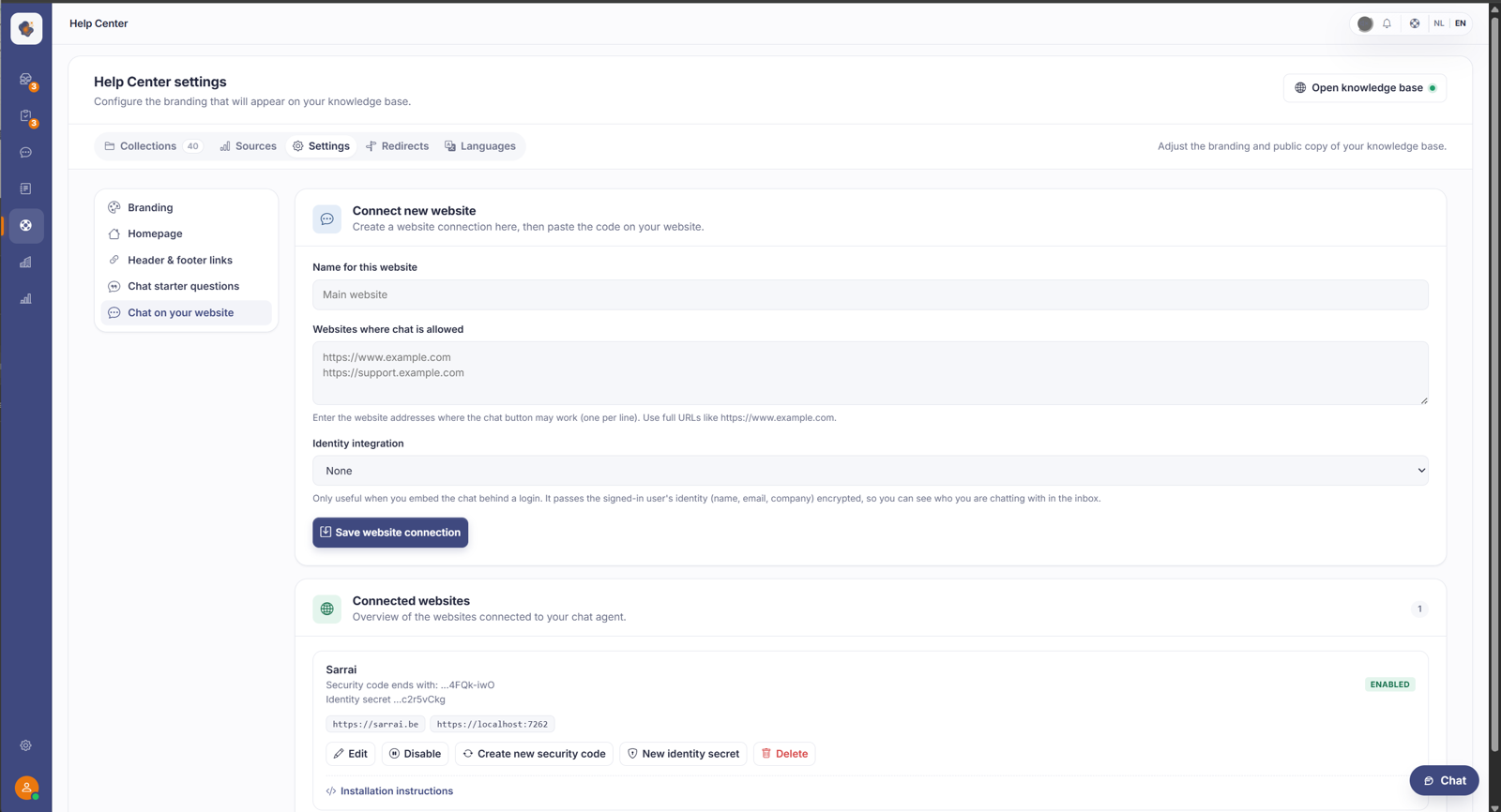
Short answer: go to Help Center > Settings > Chat on your website. Give the website a name and the addresses where the chat may appear, click Save link, then place the installation code on your site.
Step by step
- Open Help Center > Settings and choose Chat on your website on the left.
- Under Name of this website give it a recognisable name, for example Main website.
- Under Websites where chat may appear, enter the full addresses where the chat button may work, one per line.
- Click Save link.
- The connected website has Installation instructions with the code you place on your website.
Choosing which knowledge this chat may use
Per connected website you choose which knowledge the agent may consult. There are two settings:
- All sources, the default. Every published article, source, and snippet in your knowledge base. Existing links are on this and don't change behaviour.
- Selected sources. Only the collections and the websites or PDFs you tick, plus your snippets as long as you leave those on.
Collections appear as a tree. Tick a collection and its subcollections come along; you can switch those off individually afterwards. The restriction applies everywhere at once: both to the knowledge Sarrai retrieves by herself and to what she finds through her own search. So she can't reason around it, and she won't list topics that fall outside your selection either.
Three things you can't see on screen, and all three matter.
This is a relevance control, not security. You're narrowing within what is already published and public, and the site key in your installation code is readable by anyone. Use it to keep answers sharp, never to shield confidential content. You do that by not publishing it.
An empty selection means nothing, not everything. Turn on "Selected sources" without ticking a single collection and the agent finds no article at all. The chat keeps working and answers politely that it falls outside her knowledge, but there's no warning that your selection is empty.
System knowledge stays available. What Sarrai knows about her own capabilities never falls under the restriction.
Good to know
Per connected website you can turn the chat on or off, generate a new security key, or remove the link.
Identity integration is only useful when you place the chat behind a login: then you pass the identity of the signed-in user (name, email, company) encrypted, so you see in the Inbox right away who you're chatting with. You build that encrypted token on your own server and put it in the data-identity attribute of the installation code. For anonymous visitors you simply leave the attribute out.
Two rules your backend developer needs to know. The secret belongs nowhere near your HTML or JavaScript: only the token encrypted with it may reach the browser, because anyone who can read the secret in your page source can pose as any customer. And generate a fresh token on every page view: the expiry is checked on the server and an expired token is silently ignored. Build the token once at sign-in and let it travel around for days, and it works at first and stops later, without anyone seeing an error.
The language of the widget
The data-locale attribute in the installation code sets the language of the widget itself. Leave it empty and it follows the lang of your page.
For the content, though, that choice is binary on a website chat: if the locale starts with nl it becomes Dutch, and everything else becomes English. A webshop with data-locale="fr-BE" therefore gets an English welcome message, not a French one. That's deliberate for the website chat; your Help Center itself keeps its French welcome.
This only covers the welcome message and the language Sarrai falls back on. The language she answers in still follows the visitor's message, so as soon as someone types in French, she answers in French.
Which example questions the visitor sees in the chat, you set under Example questions in that same settings menu.
Three things to watch. The list of allowed websites is matched exactly (scheme, (sub)domain, and port must all line up, and it must be https://): if the exact address isn't in the list, the chat button just doesn't appear, with no error message for your visitor. The chat on your own website is also a paid feature (Pro/Enterprise). And the identity secret is shown only once when you create it, so save it right away. If you renew it later, existing identity tokens stop working until you update them on the other side too.
Also searched as
"put a chat button on my site", "install widget", "embed the chat", "code for the chatbot on website", "chat behind a login"
See also
Was this article helpful?
Your feedback helps us improve this article.
Thanks for your feedback!
