
Organising your help center with collections
By using collections, you add a clear structure to your help center and ensure that you and your customers can quickly find what they're looking for.
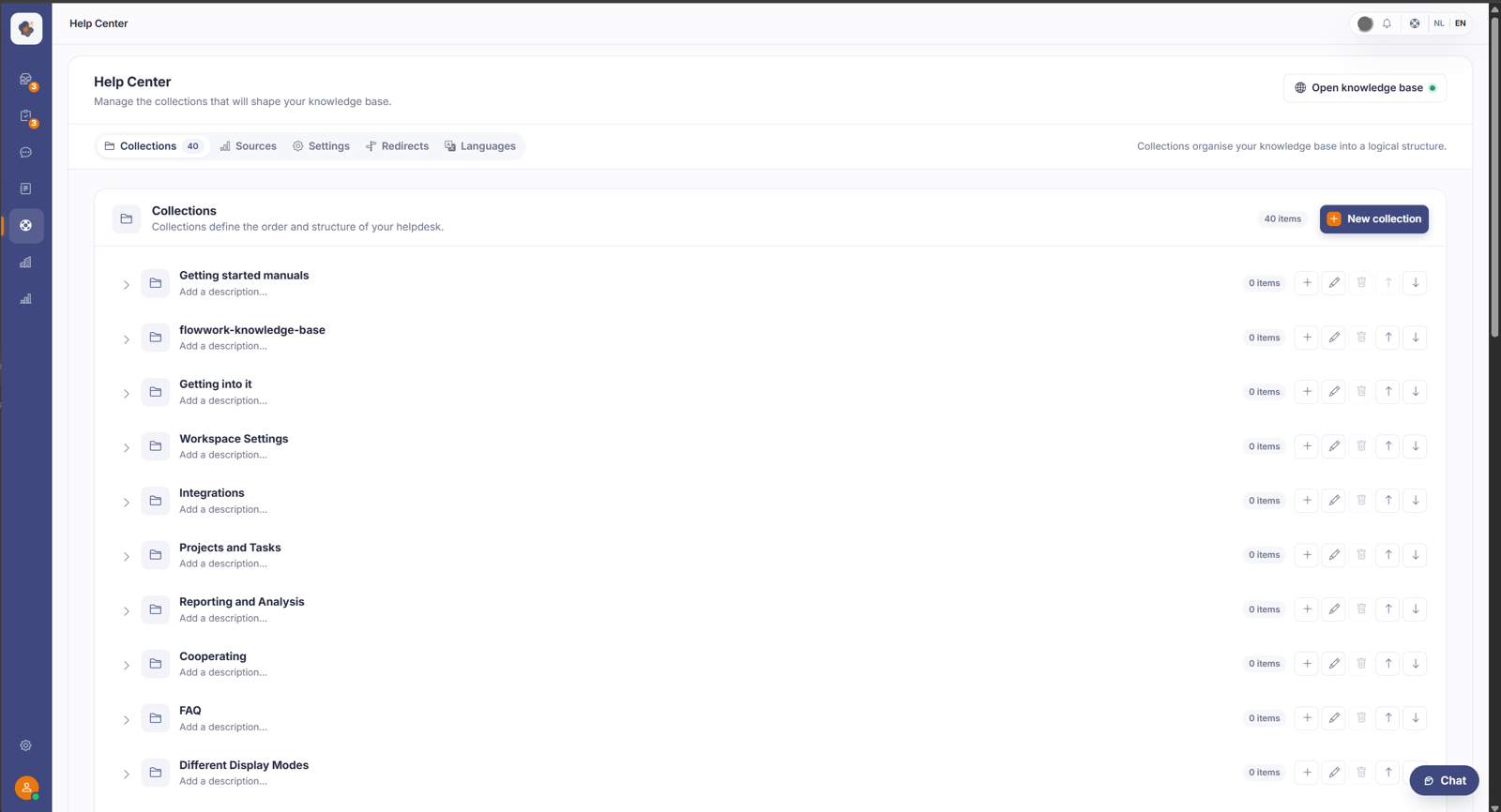
Short answer: open Help Center > Collections. With New collection you create a group. Per collection you add articles and edit the description. The order of the collections sets the structure of your public help center.
Step by step
- Open Help Center in the menu. You land straight on the Collections tab.
- Click New collection to create a group, for example Getting started or Frequently asked questions.
- Each collection has buttons to add an item, edit the name and description, delete the collection, and move it up or down with the arrows to change the order.
Good to know
Collections are the first thing your visitor sees on the help center, so a logical layout helps a lot. With Open knowledge base (top right) you can check straight away how it looks to the public.
A collection has its own title, description, and slug per language. The languages you see there are the ones you enabled under Help Center, with your default language first, and a new collection opens in that one. See Which languages do you maintain your knowledge base in?. The slug has to be unique within a language, so the same slug may sit alongside itself in two different languages.
A few things often cause confusion. The article count the admin shows for a collection includes all statuses and languages. Publicly, only published articles in that language count. So a collection that says "3 articles" in the admin can be empty (and therefore invisible) to the public if those articles are drafts or in another language. Empty collections don't appear on your Help Center. The public sidebar also shows at most two levels, so it's best to flatten deeply nested collections. And you can only delete a collection when it's empty: move or detach the articles and subcollections first.
Also searched as
"lay out help center", "create a category", "change the order of collections", "structure of my helpdesk"
See also
Was this article helpful?
Your feedback helps us improve this article.
Thanks for your feedback!
