
Importing content from Markdown files
You can import content from markdown files inside a ZIP from the content tree to quickly add new articles or update existing articles.
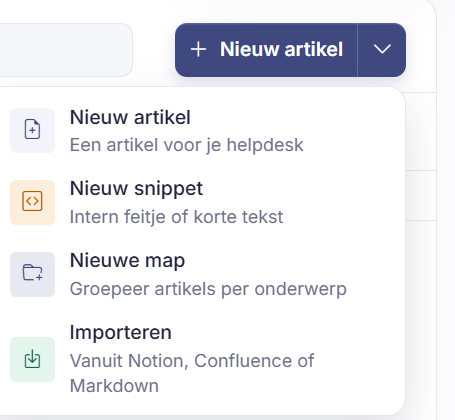
Short answer: go to Content, click the arrow next to New article and choose Import. With it you bring in existing content from Notion, Confluence or Markdown.
Step by step
- Open Content and click the arrow next to New article.
- Choose Import.
- Follow the steps to load in your source (Notion, Confluence or Markdown).
Good to know
Importing is mostly handy at the start: if you already have a knowledge base or documentation elsewhere, you don't have to retype it. During the import you choose whether everything comes in as published or as a draft. Mind the consequence: if you import as a draft, a new article isn't available to the AI yet until you publish it later. If you import again later with the same structure, existing articles are updated instead of duplicated.
What a large website runs into
If you have a whole website read in, it rarely stops on the page count. In practice you hit 25 MB of retrieved text or 30 minutes per run first. When that happens your result is partial rather than failed: the next run picks up the rest.
Per workspace you can convert up to 1000 website pages. Separate file uploads have their own, much smaller quota of 20. The two count apart. Go over the page quota and the extra pages are skipped, but you do get a breakdown of what was requested, read in, already converted, and skipped. Nothing is quietly cut off.
Two reassurances. Retrying is safe: the import remembers which pages it already converted, so a repeated attempt makes no duplicates and doesn't start from scratch. And a generation that gets stuck is resumed, not thrown away: Sarrai continues on the same run and skips what's already written, so the expensive thinking behind a large import isn't lost.
Two limits where you're asked to confirm: if the AI proposes more than 100 articles, Sarrai checks with you first, because that costs money. And above a very large amount of text the article in progress is finished and the generation stops with the status partially completed; you do the rest in a following round.
Note that crawling a website, reading in a PDF, and generating articles are plan-dependent features. If a step isn't in your plan, you get an upgrade message rather than an error. See How does Sarrai's pricing work?
Besides this import, there's a separate startup method that fills your knowledge base in one go from a website (Sarrai crawls the pages and generates articles from them). Those generated articles come in published and AI-available right away, with no approval step, so read them after the import, not before. In both cases, look over the imported articles: title, folder, collections and the Available for AI Agent switch are best set by hand.
Also searched as
"transfer content from Notion", "import Confluence", "load in markdown", "migrate existing documentation"
See also
Was this article helpful?
Your feedback helps us improve this article.
Thanks for your feedback!
