
Writing a new article
Learn how to write a new article, publish its new content and save drafts.
Short answer: go to Content, click New article, give it a title and write your text in the editor. Your changes are saved automatically; Publish puts the article live.
Step by step
- Open Content in the menu and click New article at the top right. (The arrow next to it also lets you pick snippet, folder or import.)
- Give the article a clear title, ideally the question or topic the way a visitor would search for it.
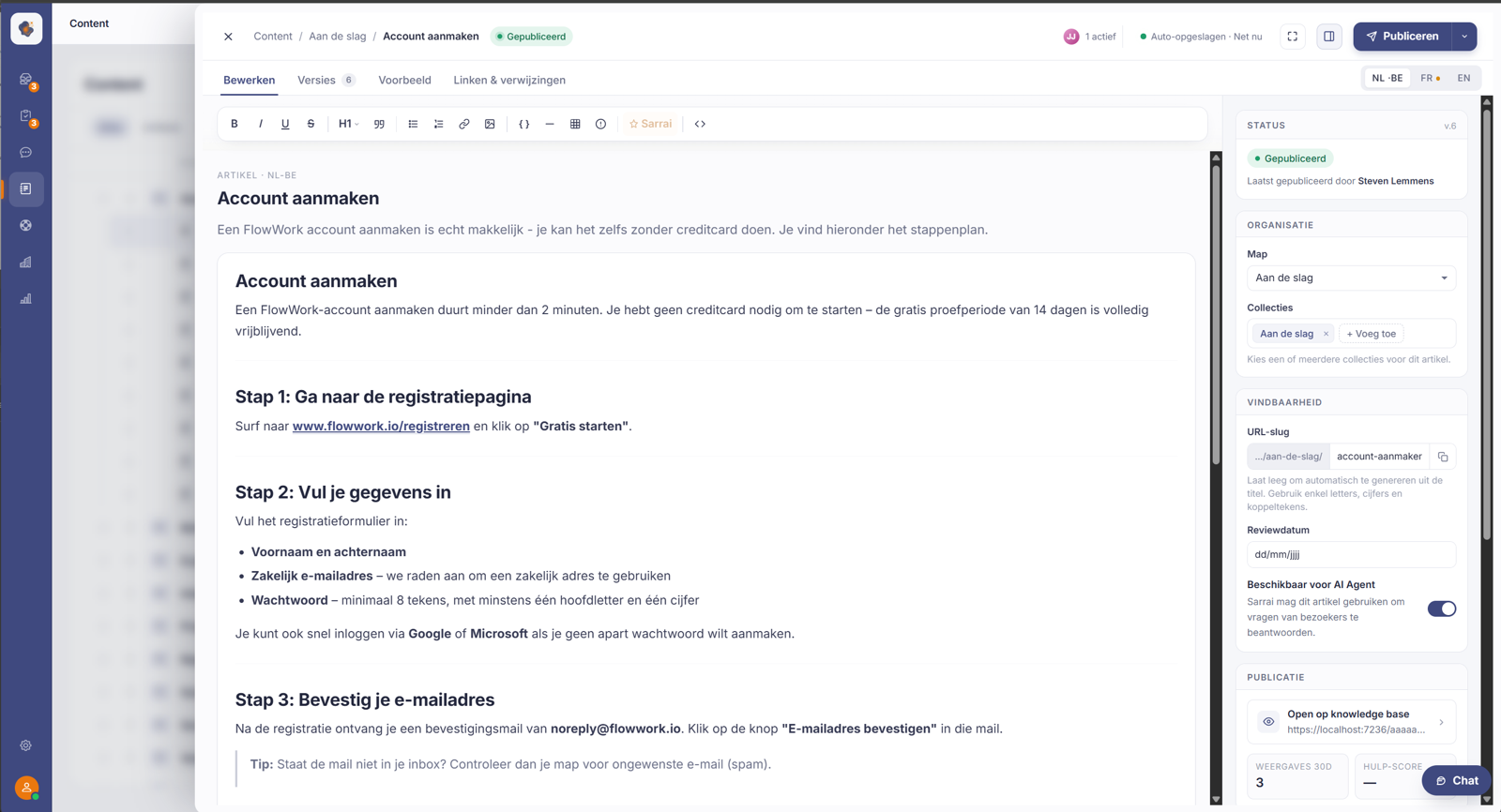
- Fill in a short introduction and write the content below it. The toolbar gives you formatting: bold, italic, headings, lists, links, images, tables and more.
- Click Publish at the top right to put the article live.
Good to know
You don't have to worry about losing anything: at the top you see Auto-saved, your work is saved continuously. Through the Versions tab you can go back to an earlier version, and with Preview you see how the article looks to a visitor before you publish.
At the bottom, the editor shows the word count and the estimated reading time. If you paste text from Google Docs, the basic formatting carries over.
One important consequence of publishing: it freezes a snapshot. If you keep editing afterwards, nothing changes on the public page until you publish again. So your visitors keep seeing the published text while you're already working on a newer version. Don't forget to publish again when you want your changes live.
Also searched as
"how do I create a knowledge article", "write a new helpdesk piece", "draft and publish an article", "where do I type the content"
See also
Was this article helpful?
Your feedback helps us improve this article.
Thanks for your feedback!
