
Organising an article and making it findable (folders, collections, slug)
Learn how to organise your articles so you'll quickly find what you need.
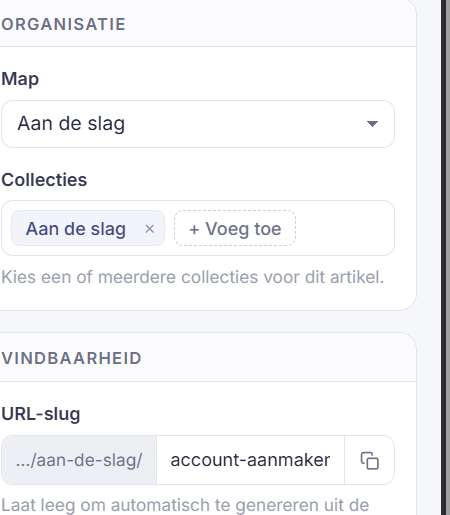
Short answer: in the editor's right-hand panel, under Organisation and Findability, you choose the folder and collections the article belongs to and set the URL slug. That way the article is logically placed and easy to find again.
The fields
Folder decides where the article sits in your content tree. The default is (root); choose a folder to place it among related articles.
Collections group articles by topic for your help center. One article can sit in several collections. Click Add to choose one.
URL slug is the article's address, for example how-does-cambio-car-sharing-work. If you leave it empty, Sarrai builds a slug from the title automatically. Use only letters, numbers and hyphens.
The order in the content tree is fixed
You can't drag articles into an order of your own. The tree sorts itself: within each folder the folders come first, then the articles and snippets, each alphabetically by title. Move an item to another folder and it lands in its alphabetical spot, not at the bottom.
If you want to force a particular order on your public Help Center, use collections: those you can arrange yourself.
Why you sometimes can't find an article
The content tree shows titles in the default content language of your Help Center, not in the language you're viewing the back office in. If your Help Center defaults to English while you work in Dutch, you'll see English titles.
The search field above the tree filters on exactly those displayed titles, and therefore in one language only. An article called Refund policy in English and Terugbetalingsbeleid in Dutch will only turn up on "refund" if English is your default. Searching for "terugbetaling" returns nothing, even though the translation exists. So if you can't find something, first check whether you're searching in the right language. See Offering an article in multiple languages.
Good to know
A tidy structure helps twice over: your visitors find their way faster on the help center, and the AI finds the right article faster for a question.
Watch the distinction between folders and collections: folders organise your work internally and play no role on your public Help Center; only collections decide what visitors see. So placing an article neatly in a folder doesn't make it publicly findable.
And a targeted tip: your public Help Center search only looks at an article's title and introduction, not the body. So put your most important keywords in the title and the intro, not just in the body. (A clear title and slug do more here than a long body.) Finally: deleting a folder takes all the articles in it with it, including published ones, which then go offline. Check the contents before you delete a folder.
Also searched as
"put an article in a folder", "add a collection to an article", "change the url of an article", "organise content by topic"
See also
Was this article helpful?
Your feedback helps us improve this article.
Thanks for your feedback!
