
Snoozing a conversation
If there's no action to be done for this conversation right now, it's time to snooze the conversation so it temporarily disappears from your inbox.
Short answer: at the top of the conversation, click Snooze and pick a time. The conversation leaves your active list for a while and comes back on its own at the chosen moment.
Step by step
- Open the conversation.
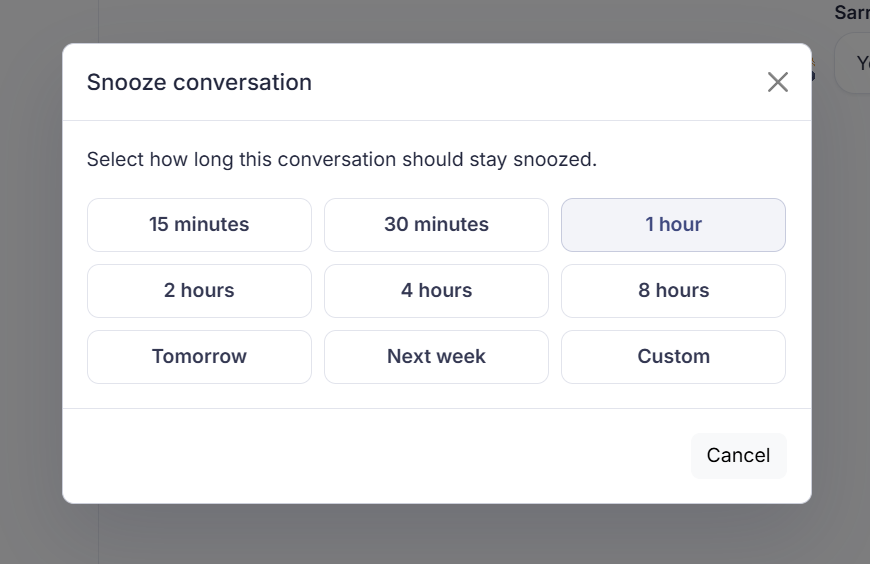
- Click Snooze at the top.
- Choose how long it can stay away: 15 minutes, 30 minutes, 1 hour, 2 hours, 4 hours, 8 hours, Tomorrow, Next week, or Custom for a moment of your own.
Good to know
You snooze when there's nothing you can do right now but you don't want to forget the conversation: you're waiting on a delivery, on an answer from a supplier, or you've arranged to call the customer back at a set time. The conversation isn't closed, just out of sight for a while.
You find a snoozed conversation again through the Snoozed filter above the conversation list. At the top of the Inbox you also see how many conversations are snoozed. Tomorrow means tomorrow at 09:00, next week means Monday at 09:00.
Two things not to count on. A snooze isn't an exact alarm clock: an expired snooze only comes back into your queue when someone opens the inbox or something happens. There's no separate clock task running. And the conversation then comes back as open (not in progress), without anyone getting a notification. If you want to snooze more than a day ahead, use the separate Snooze button; through Send + snooze you're capped at 24 hours.
Also searched as
"postpone a conversation for a bit", "bring a chat back later", "set a conversation aside for now", "set a reminder for a conversation"
See also
Was this article helpful?
Your feedback helps us improve this article.
Thanks for your feedback!
