
Linking a conversation to a contact or company
By linking a conversation with a contact or company, you add valuable information to your CRM.
Short answer: open the context panel on the right, search under Contacts by name, email, or company, and link the right contact. If it doesn't exist yet, click Create new.
Step by step
- Open the conversation and show the right panel via the panel icon at the top.
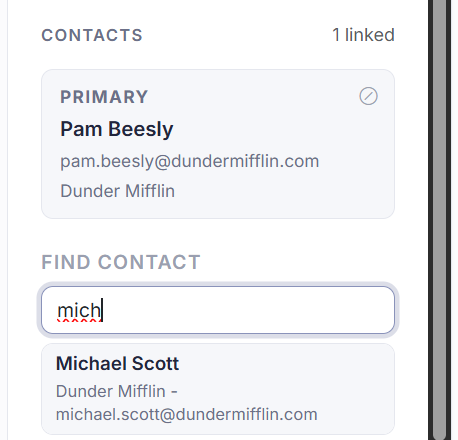
- In the panel, scroll to the Contacts block. For a loose conversation it says 0 linked.
- In Find contact, type a name, email address, or company and pick the right contact.
- If you find nothing, click Create new to add a contact straight away.
Good to know
By linking a conversation to a contact, you build up that customer's history: later conversations hang on the same person or company. At the top of the panel you also see the basic info of the conversation: the channel, when it was created, and the last reply.
Managing all the contacts and companies themselves happens in the CRM section.
Linking can also happen automatically: if a visitor fills in the contact form in the chat, Sarrai looks up an existing contact by email address and links it. If that email address already exists, the existing details are updated with what the visitor entered. The match is purely on email, not on name, so a typo can overwrite the wrong record. A conversation can hang on several contacts; one of them is primary and determines the customer name you see at the top and in the queue. And note: a contact that was once linked to a conversation can no longer be deleted in the CRM, only archived.
Also searched as
"know who the customer is", "attach a conversation to a company", "add a contact person to a chat", "customer details on a conversation"
See also
Was this article helpful?
Your feedback helps us improve this article.
Thanks for your feedback!
