
Opening, filtering, and drilling into a report
By drilling into a report, you get to see the underlying information, so you can see exactly how Sarrai arrived at those numbers.
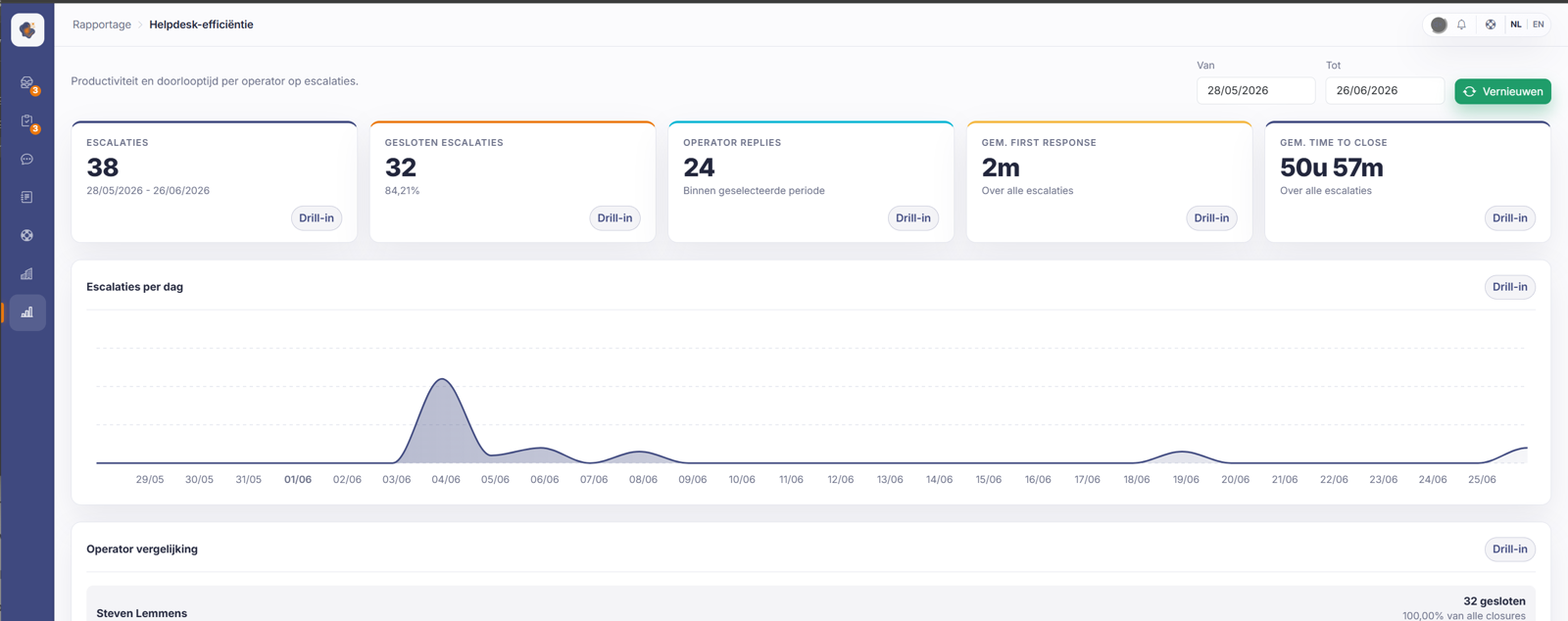
Short answer: open a report under Reports, set a period at the top with From and To, and click Refresh. The key figures sit at the top, with charts and breakdowns below. Drill in zooms into the conversations behind a number.
Step by step
- Open Reports in the menu and click a report.
- Set the period at the top right with From and To, and click Refresh.
- Read the key figures at the top (such as total conversations, escalated, resolved).
- Look at the charts and breakdowns below. Click Drill in to see the underlying conversations.
Good to know
Every report works the same way, so once you get the hang of one, you know them all. The Drill in is what makes a number useful: instead of just "46 escalated", you see which conversations those were.
Three things not to misread. The reports count days in UTC, not in Belgian time, so a conversation late in the evening can end up counting on the next calendar day. Click through on a daily chart and you get the conversations for the whole period, not for that one day. And report figures are not the same as the counters in your inbox: the inbox badges count what is open right now, while the reports count over a historical period with different definitions. The same day can show different numbers, and that's correct.
Also searched as
"view a report per period", "date filter in reports", "zoom into the numbers", "how do I read a report"
See also
Was this article helpful?
Your feedback helps us improve this article.
Thanks for your feedback!
