
Editing the start page and header and footer links
Learn how to edit your public knowledgebase's start page by adding header & footer links.
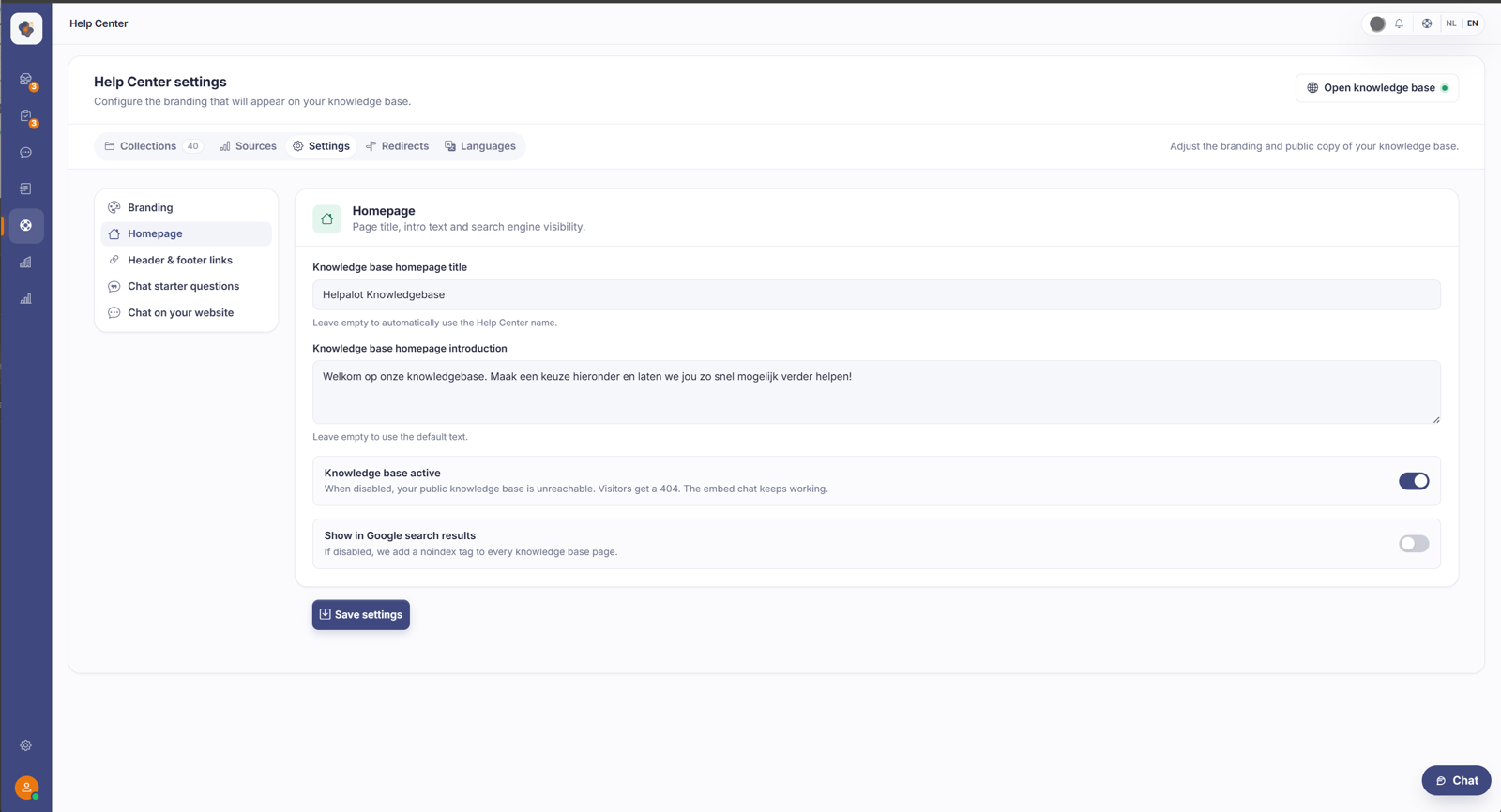
Short answer: open Help Center > Settings. Under Start page you set what visitors see first on your help center. Under Header & footer links you manage the links in the header and footer.
The two parts
Start page sets the opening page of your public help center: the title, the text, and what shows at the top.
Header & footer links are the links you show in the header and footer of your help center, for example to your main website, your contact page, or your terms.
Two common mix-ups
The search/question bar at the top of your homepage isn't a classic search function: whatever a visitor types opens the chat with that question. And the "frequently asked" chips on the homepage show your most popular articles (by number of views), not the start questions you set. Those start questions (the example questions) appear elsewhere, namely in the opening screen of the chat, both on your Help Center and in the embed widget.
Good to know with a multilingual Help Center: the header and footer links and the start questions are not set per language. You type one text, and it shows up identically in every language version.
Good to know
With Open knowledge base at the top right you check the result straight away, the way a visitor sees it. A few targeted links (to your website, your contact page) make your help center more useful right away.
You can also turn your public Help Center off entirely. Then the whole public website shows a "not available" page, but the chat widget and the embed keep working. Handy if you only want to serve customers through the chat.
Also searched as
"opening page of help center", "add links to the footer", "edit the menu of my helpdesk", "what visitors see first"
See also
Was this article helpful?
Your feedback helps us improve this article.
Thanks for your feedback!
