
Configuring Sarrai AI's name, button text and avatar
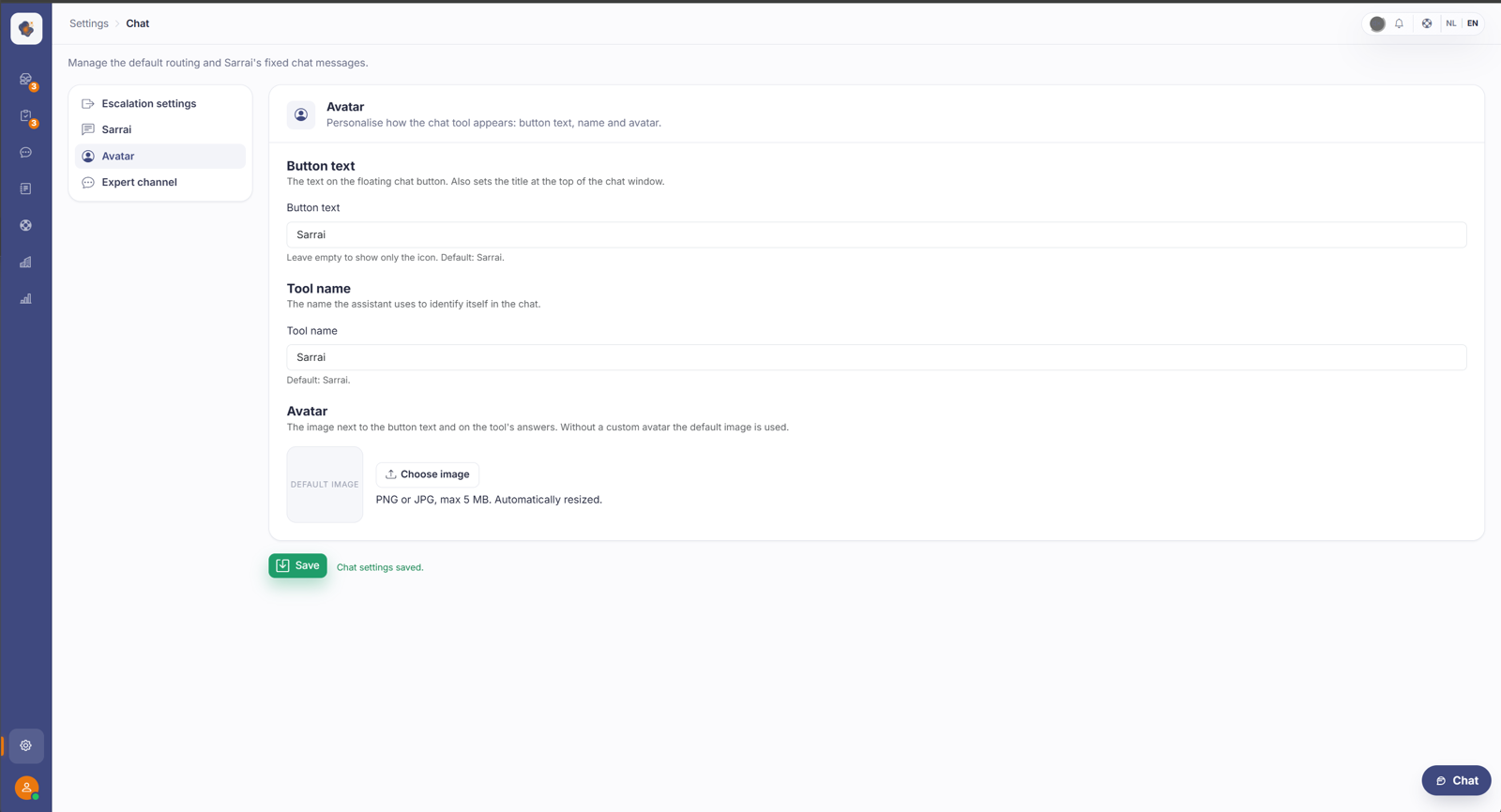
In Settings > Chat > Avatar you personalise how the chat appears: the button text on the chat button, the name the assistant answers under, and the avatar image. Leave something empty and it falls back to the Sarrai default.
Short answer: go to Settings > Chat and open the Avatar tab. There you set the button text, the name the assistant uses, and the avatar image. If you leave a field empty, Sarrai uses her default.
What you can set
Button text, the text on the floating chat button. It also sets the title at the top of the chat window. Leave it empty and the button shows only the icon. The default is Sarrai.
Tool name, the name the assistant uses to identify itself in the chat, on its answers. This lets the AI speak under your own name instead of Sarrai.
Avatar, the image next to the button text and on the assistant's answers. Choose a PNG or JPG (max 5 MB); the image is resized automatically. Without a custom avatar, Sarrai uses the default image.
Why you'd want this
This makes the chat feel like part of your own brand. The assistant carries your name and face, not the tool underneath, and visitors see a familiar button instead of a generic chat bubble. That lowers the threshold to ask a question.
Good to know
This is about the name and face of the chat. The colours, logo and fonts of your public Help Center are set elsewhere, under Setting the branding of your help center. Keep in mind that the chat button itself deliberately stays Sarrai navy for recognisability; on this tab you change the text, name and avatar, not the button colour.
Anything you leave empty here falls back to the Sarrai default, so you never end up with a blank button or a nameless assistant.
Also searched as
"give the chatbot its own name", "change the text on the chat button", "upload an assistant avatar", "chat under my own brand", "change the AI's name"
See also
Was this article helpful?
Your feedback helps us improve this article.
Thanks for your feedback!
