
Requesting and downloading exports
By exporting information from Sarrai, you can create backups for safekeeping or other reporting purposes. Exports are executed in the background and you will be notified when they are available for download.
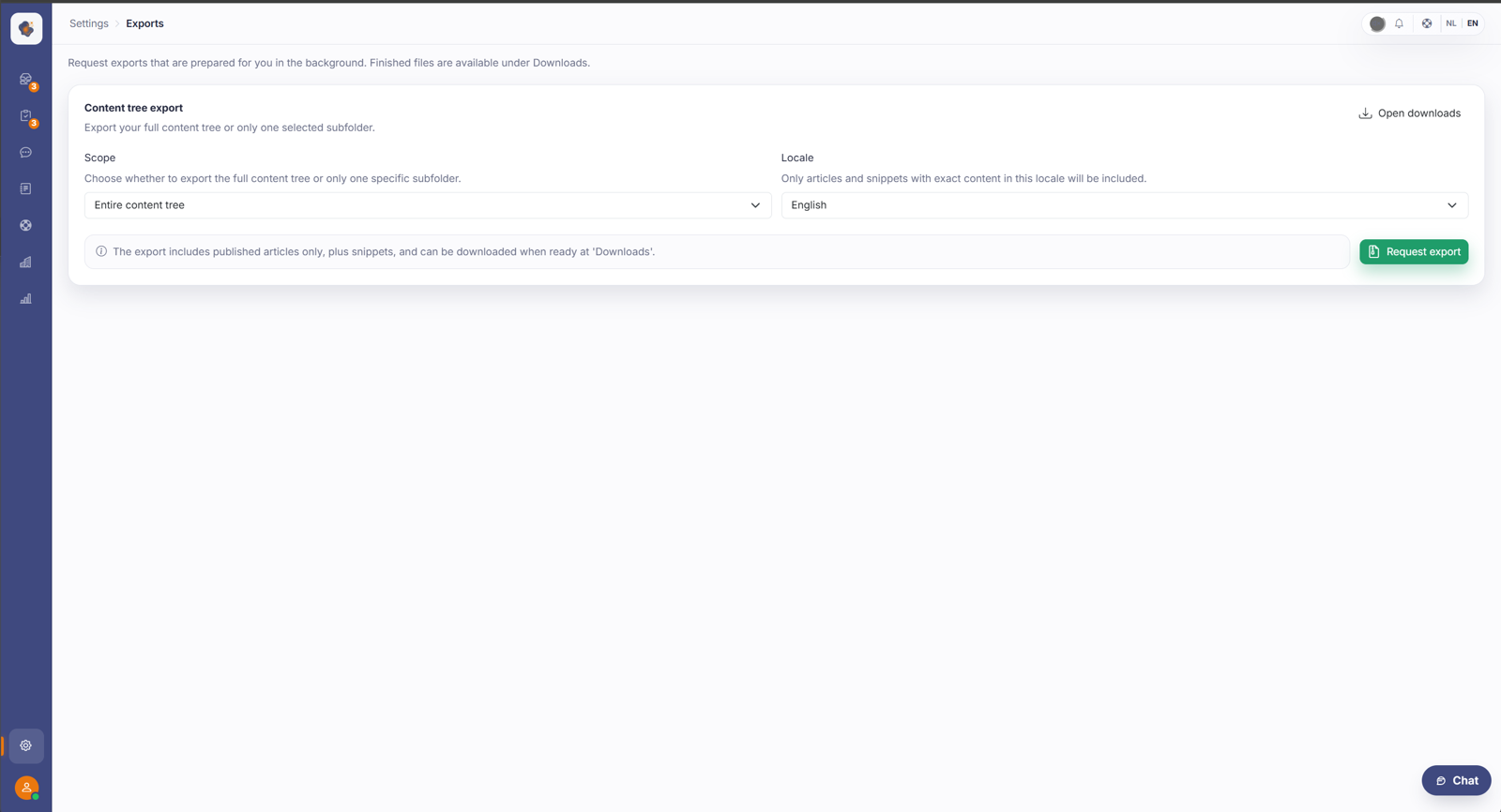
Short answer: go to Settings → Exports to request an export, for example of your content tree. When the export is ready, you pick up the file under Settings → Downloads.
Step by step
- Open Settings → Exports and request the export you want (such as your content tree).
- The export gets prepared; that can take a while.
- Go to Settings → Downloads to pick up the file once it's ready.
Good to know
Requesting (Exports) and picking up (Downloads) are deliberately separate, because an export needs some time to be prepared. An export of your content tree is handy as a backup or to view your knowledge base elsewhere.
The language picker on Exports shows only the languages you enabled under Help Center, with your default language first. A new export opens in that one, not in the language you're viewing the back office in. Downloads deliberately doesn't filter on your enabled languages: if you once requested an export in a language you later switched off, that job keeps showing its language label. Otherwise you'd be left with a file and no way to tell which language it's in.
Do know what's in it and what isn't. An export contains only published articles (no drafts; snippets yes) and is one language per ZIP, so it's not a full backup. You can't export CRM contacts or conversations, which matters for data access requests. The download link is also valid for a limited time (about a week), after which the file is deleted and you have to export again. And you only see your own exports, even a fellow admin doesn't see yours.
Also searched as
"export my content", "a backup of the knowledge base", "download the export file", "export the content tree"
See also
Was this article helpful?
Your feedback helps us improve this article.
Thanks for your feedback!
