
Redirecting old or renamed help center links
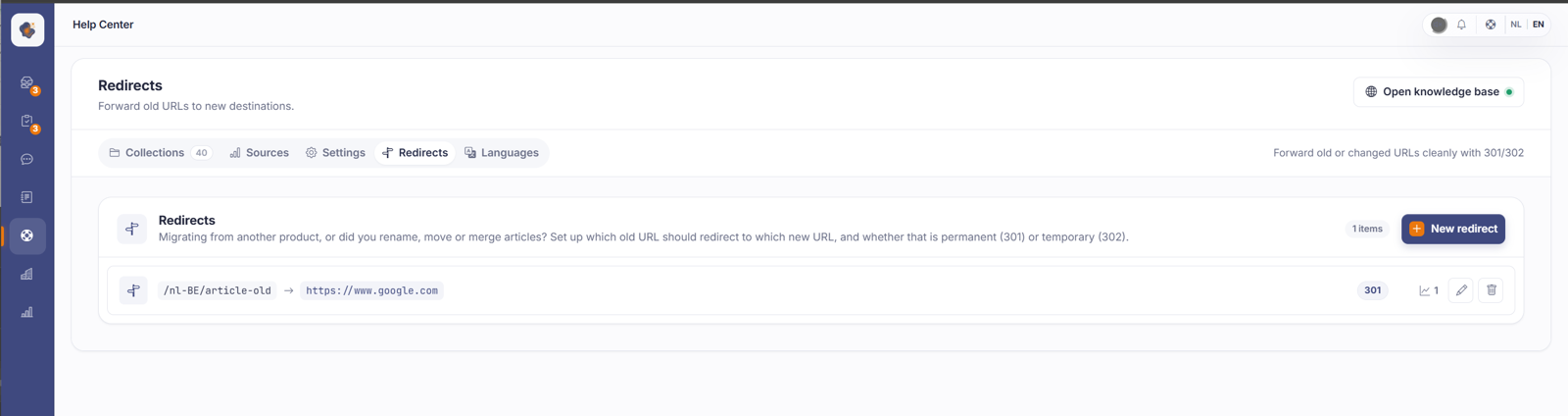
Under Help Center > Redirects you send an old URL to a new destination. You enter the old path (including the language code) and the new URL, and choose 301 (permanent) or 302 (temporary).
Short answer: open Help Center > Redirects and click New redirect. Enter the old path (the way visitors request it, with the language code, for example /nl-BE/article/old-slug), put the new URL next to it, and choose whether it's a permanent (301) or temporary (302) redirect.
Step by step
- Open Help Center and go to the Redirects tab.
- Click New redirect.
- For Old URL (path), enter the path the way visitors request it, including the language code and starting with a
/, for example/nl-BE/article/old-slug. Leave your domain out. - For New URL, enter the destination: an internal path (starts with
/) or a full external URL (https://…). - Under Redirect type choose between 301 — Permanent and 302 — Temporary, then click Save.
Why you'd want this
If you move from another helpdesk tool, or you rename, move or merge an article, the URLs change along with it. Old links from Google, from bookmarks or from other websites then point to a page that no longer exists, and your visitor hits a 404. A redirect catches that: the old link keeps working and sends people on to the right place. Without a redirect you lose that visitor, and on a rename you also lose the search engine value the old URL had built up.
301 or 302: which one?
301 — Permanent says the old URL has moved for good. Search engines update their index and carry the built-up value over to the new URL. This is what you want in almost every case: a move, a rename or a migration.
302 — Temporary says the redirect is provisional. Search engines then keep showing the old URL in their index. Use this only when the old URL really comes back later, for example during a temporary campaign page or maintenance.
Good to know
A few things the input fields don't show you directly.
A rule matches on that one exact path, including the language code. So a redirect for /nl-BE/old-article does not work for /en/old-article. If the old page exists in several languages, you create a separate rule per language. The same goes if visitors requested a path in different ways: each variant is its own rule.
Each rule shows a Hit count, a counter that goes up every time a visitor passes through that redirect. Handy to see whether an old link is still really used, or to confirm that a new rule is catching.
A new or changed rule becomes active after about half a minute. If your Help Center runs on more than one server, it can take a moment before the rule applies everywhere at once, so do test again if it doesn't seem to work right after saving.
A redirect doesn't work, or you get an error?
When you save, Sarrai checks a few things. The messages you might run into:
- The old URL is required. The from-path can't be empty and can't be just
/. - The new URL must be an internal path (starts with /) or a full URL (https://…). Check that your destination starts with
/or withhttps://. - The old and the new URL can't be the same. You can't redirect a path to itself.
- A redirect for this old URL already exists. There can be only one rule per from-path. To change the destination, edit the existing rule rather than adding a second one.
If a rule doesn't redirect when you expected it to, the difference is almost always in the from-path. The comparison is case-insensitive: /nl-BE/Old and /nl-BE/old count as the same rule, so you can't make two of them. But beyond that, the saved path has to match exactly how visitors request it. Don't forget the language code, and watch for a trailing slash. If it doesn't match identically, the redirect never fires.
Finally, the redirect type is always 301 or 302. Any other value becomes 301 automatically.
Also searched as
"old link keeps working", "article renamed url changed", "avoid 404 after a move", "redirect a url", "set up a 301 redirect", "migrate links from another tool", "redirect not working", "a redirect for this url already exists"
See also
Was this article helpful?
Your feedback helps us improve this article.
Thanks for your feedback!
