
Signing in and starting screen
There are two ways to sign in, with an e-mail address and a password or passwordless with a link.
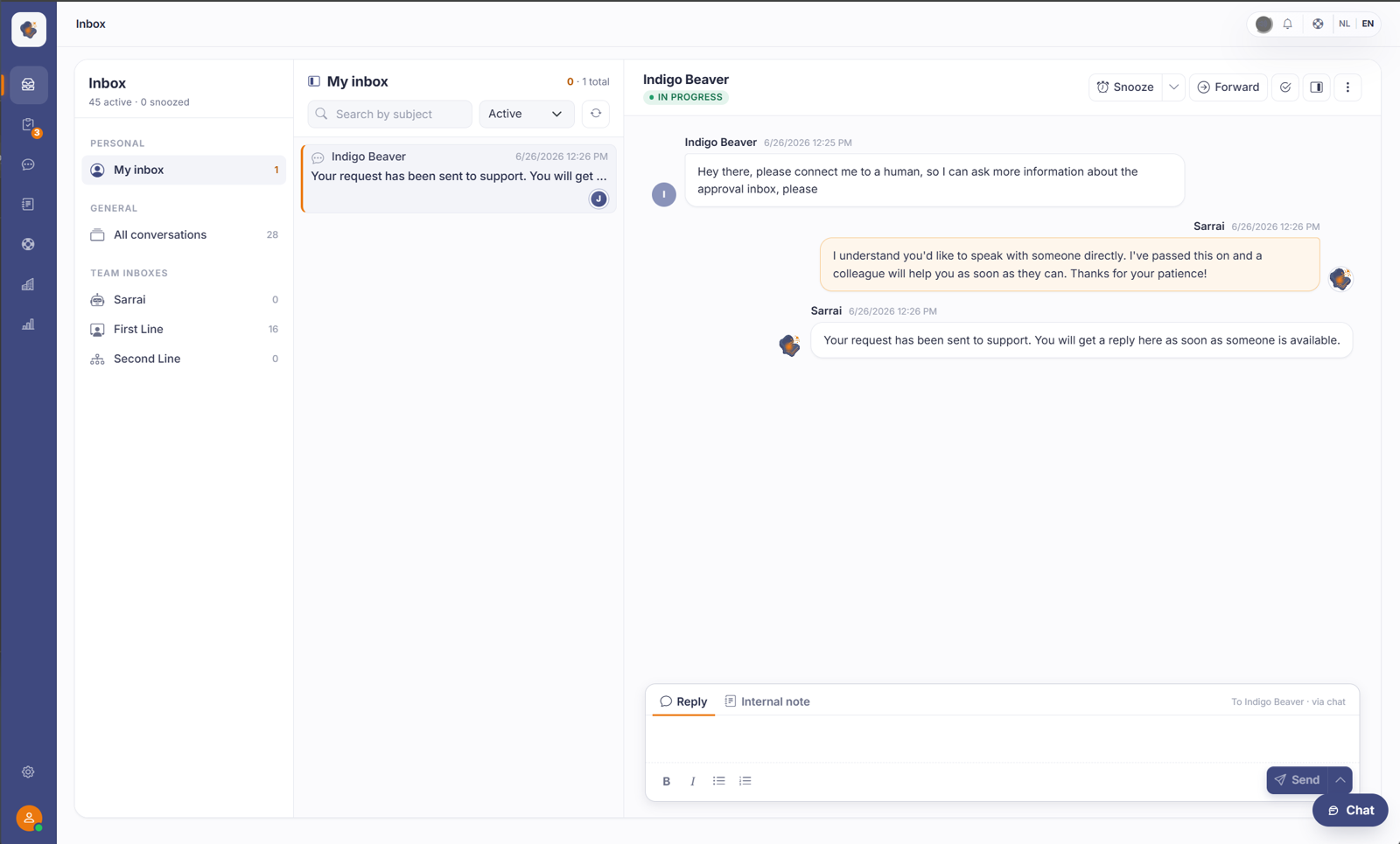
Short answer: after you sign in with your email address and password, you land in the Inbox. That is your start screen: it holds the conversations waiting for an agent.
What you see
On the far left is a narrow bar with the main sections. Use it to jump between Inbox, knowledge base, reports, and settings. The Inbox itself has three parts: My inbox, All conversations, and the shared Team inboxes.
At the top of the Inbox, one line tells you how many conversations are active and how many are snoozed.
Two ways to sign in
You sign in with your email address and password, or without a password: you request a sign-in link and receive both a clickable link and a 6-digit code by email. Both log you in. Remember me keeps your session for about a working day.
Where you land depends on your role: an admin or operator lands in the Inbox, a content manager in the Content section. If your workspace has not finished its setup yet, you first land in the setup wizard.
A second step if you have two-step verification on
If you turned on two-step verification on your profile, every sign-in route ends on the same second step: a six-digit code from your authenticator app. That goes for all the ways above, password, email code, and sign-in link alike.
So the sign-in link does not exempt you from the second step. That's deliberate: anyone with access to your mailbox could request a link themselves, and then your second step would protect nothing.
Two-step verification is off by default and is each user's own choice. An administrator can't impose it on your workspace, and can't turn it on for you either. Turning it off for a colleague who is locked out, they can. How to set it up is in Turning on two-step verification; what to do when you've lost your device is in I've lost my authenticator app.
Good to know
Lost your password? Use Forgot password on the sign-in screen. There is no separate screen to change your password. After five failed attempts your account is locked for 15 minutes. Sign-in error messages are deliberately vague (an "invalid attempt" can mean either the email or the password), so that no one can use the sign-in screen to find out which addresses have an account.
If you can't get in at all, the administrator of your organisation can help you further. They invite team members and manage the accounts. See Managing your profile and account.
Also searched as
"where do I start after signing in", "what is the first screen", "I'm signed in, now what", "home screen of the back office"
See also
Was this article helpful?
Your feedback helps us improve this article.
Thanks for your feedback!
