
Setting your presence (available or away)
By setting your presence, you change the way incoming conversations are routed to inboxes
Short answer: click the presence icon in the top right to switch between Available and Away. You can also do it through your profile menu at the bottom left, under Change status.
Step by step
- The presence icon sits in the top right of the bar. One click switches your status.
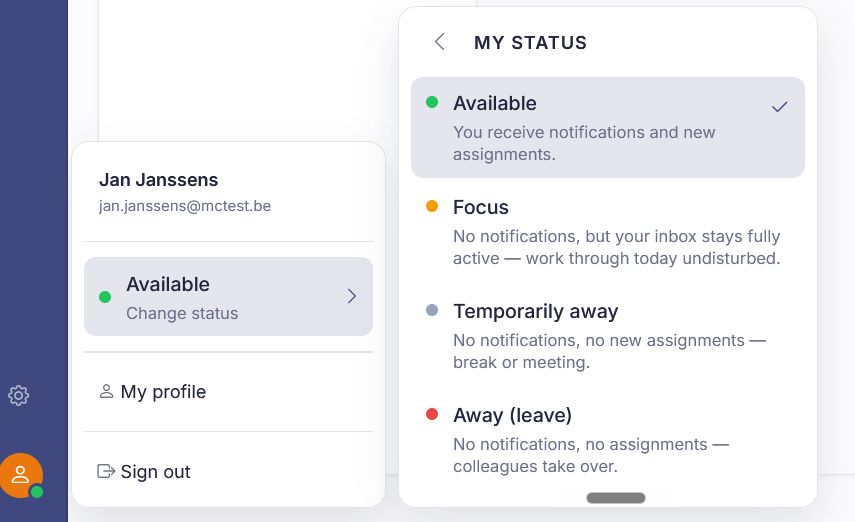
- Or click your avatar at the bottom left. At the top of the menu you'll see your current status (for example Available, with a green dot) and Change status.
Your status controls more than visibility
Behind Change status there are more choices than just available or away, and they decide not only what you see but also whether you get work and notifications:
- Available: you get notifications (bell and sound) and conversations assigned to you automatically.
- Focus: you still get conversations assigned, but without bell or sound. You keep working quietly while the work still lands in your counter.
- Temporarily away: no notifications and no new assignments.
- On leave: no notifications and no assignments.
Two things to remember. Focus and Temporarily away reset themselves to Available after a while (at a time you set, or at the end of your working day). On leave does not: it stays until you change it yourself. And outside opening hours nobody gets notifications or assignments, not even on Available.
Also searched as
"set myself to away", "go online or offline", "take a break in the helpdesk", "show that I'm available"
See also
Was this article helpful?
Your feedback helps us improve this article.
Thanks for your feedback!
