
Setting the default assignment for escalated conversations
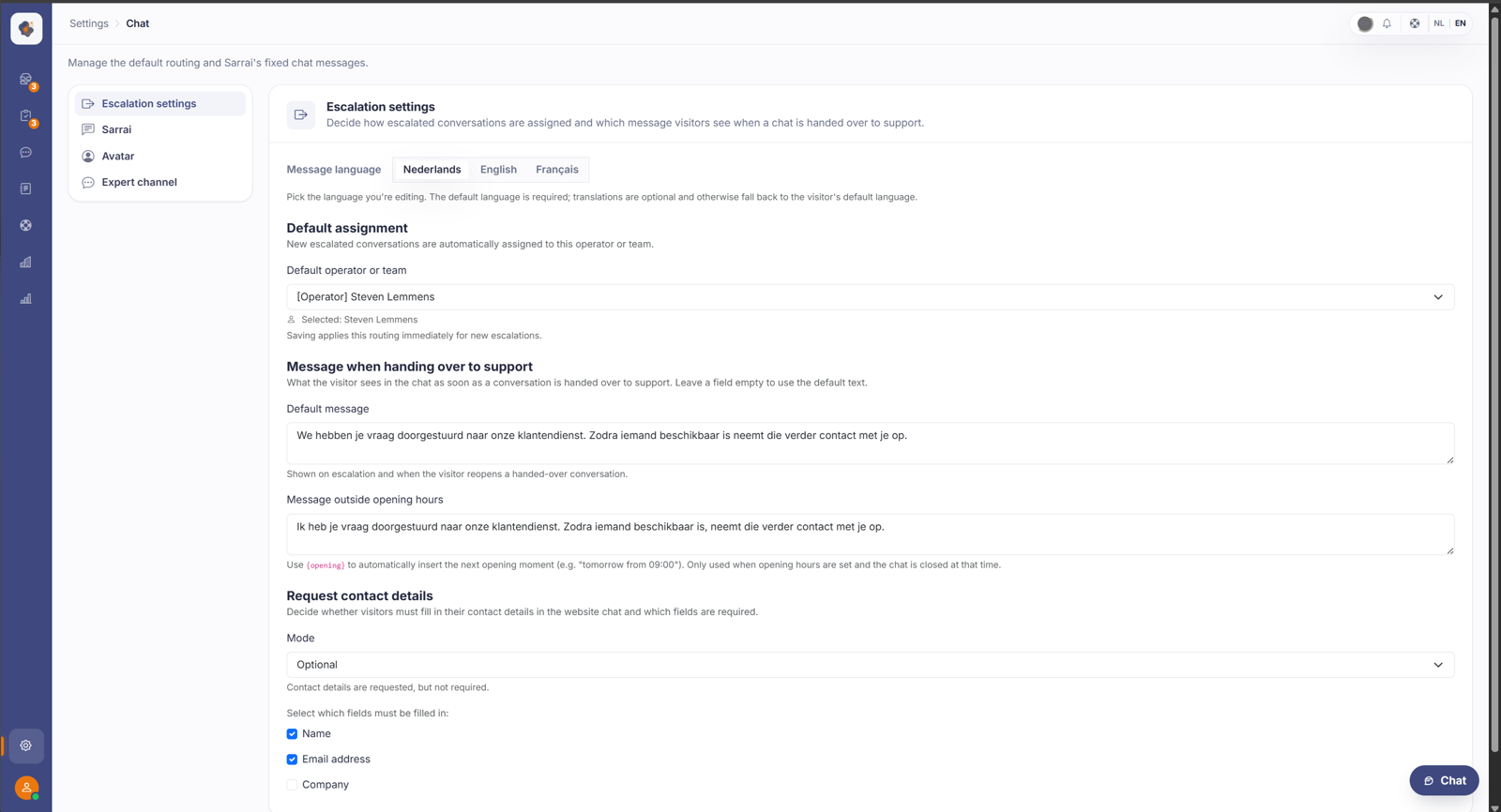
By setting the default assignment, you control what happens to new conversations. You can either route it directly to a person or route it directly to a team.
Short answer: go to Settings → Chat to set which person or team new escalated conversations are assigned to by default. That way a conversation moving from Sarrai to a human lands with the right person or queue right away.
What you use it for
When Sarrai hands a conversation over to a human, this setting decides where it ends up. By setting a default assignment, no one has to pick up each incoming conversation by hand.
Good to know
A good default assignment, for example to your first-line team, makes sure escalated conversations never hang somewhere. You can still assign or hand over an individual conversation afterwards.
Three things to know. This assignment deliberately ignores the opening hours and someone's presence status: an escalated conversation gets assigned to them at night or while they're on leave too, and just waits until they're back, which beats sitting unmanaged. If you assign to a team, no team member gets a personal notification. And if the assigned person or team later disappears (role change, deleted team), the assignment quietly falls back to unmanaged, so check it after staff or team changes.
Also searched as
"where do escalated conversations end up", "auto assign to a team", "default for new conversations", "set up escalation routing"
See also
Was this article helpful?
Your feedback helps us improve this article.
Thanks for your feedback!
