
Maintaining an article in multiple languages
Any helpdesk content can be written in multiple languages, so you can internationalize your customer service.
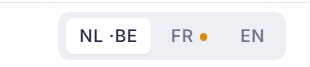
Short answer: at the top of the editor are the languages your workspace offers, with your default language first. Click a language to edit that version. A dot on a language means this article has no translation there yet.
Step by step
- Open the article in the editor.
- At the top right, click the language you want to edit.
- Write the version for that language. Each language has its own title, text and slug.
Which languages you get to see
Sarrai once worked with three fixed languages. That's no longer the case: under Help Center you choose yourself which languages your workspace offers and which of them is your default. See Which languages do you maintain your knowledge base in?
That choice then drives every language picker in the app: the article editor, the collection drawer, the import wizard, the export picker, the fixed chat messages, and the language tabs on Broken links. So you only see the languages you actually use, with no unused tabs left over.
Your default language sits first and opens by itself. An article you open from the content tree therefore opens in your default content language, not in the language you're viewing the back office in.
Turn a language off later and existing translations are not erased. They disappear from the pickers, the text stays put.
An empty translation stays empty
Switch to a language tab where this article has no translation yet and the title, introduction, body, and slug stay empty, with the placeholders showing.
That's deliberate. Previously the source language was pre-filled there, and if you saved that by accident you ended up with an "English" translation written in Dutch. Now you see at a glance that translation work is still to be done, and the dot on the language pill tells you exactly which languages are still missing.
Fields that don't exist per language stay filled in as normal: the folder, the collections, the AI availability, and the review date belong to the article, not to the translation.
The public knowledge base is strict, the AI is flexible
Two things diverge here, and it's important to grasp. Your public Help Center is strict per language: if an article doesn't exist in the requested language, the visitor gets a 404, there's no fallback to another language. Publishing also happens per article, not per language: one publish puts all existing translations live at once.
The AI agent, by contrast, is flexible: she always answers in the visitor's language and may use a source in another language to do so. If an article exists only in Dutch, Sarrai can still help an English-speaking visitor with it (she translates the content in her answer). The upshot: the AI can tell someone something the visitor won't find on your Help Center in their own language.
Good to know
This is about the language of your content, separate from the language you use the back office in yourself (see Switching the language of the back office). The dot next to a language helps you spot where a translation is still missing.
Also searched as
"translate an article", "make a french version", "content in english", "multiple language versions of an article"
See also
Was this article helpful?
Your feedback helps us improve this article.
Thanks for your feedback!
