
Setting up roles and permissions
By using roles and permissions, you govern what exactly is possible for each user and role.
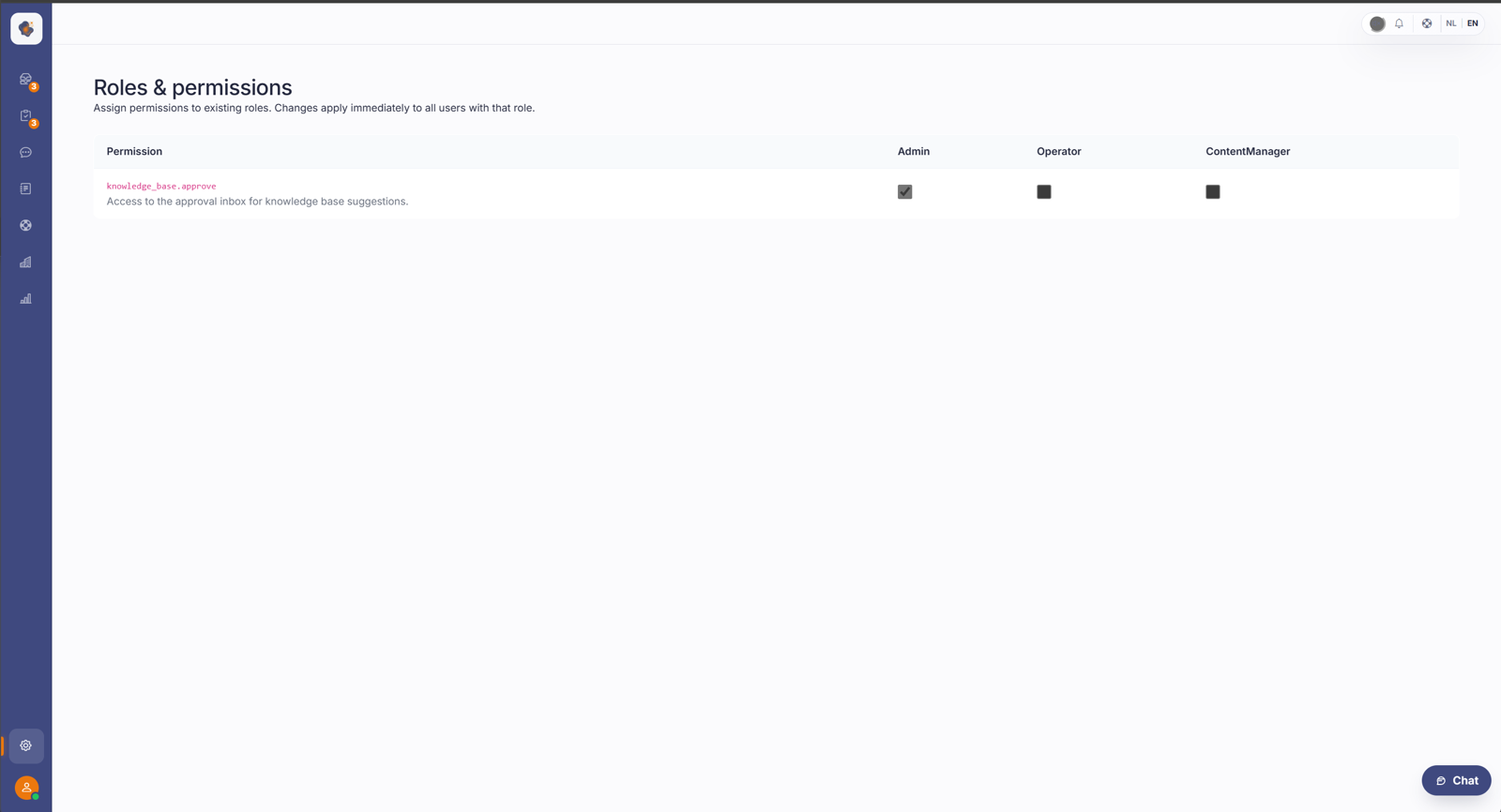
Short answer: go to Settings → Roles & permissions to decide which roles have which rights, for example who is allowed to approve knowledge base suggestions. That way each agent gets exactly the access that fits their job.
What you use it for
A role bundles a set of rights. On this screen you decide per role what they can do, such as approving knowledge base suggestions, managing content, or changing settings. When you invite or edit a user, you then assign a role.
Good to know
The principle of as few rights as possible pays off: give someone what they need, not more. That keeps anyone from accidentally changing something that matters, like your public content or your billing settings.
In practice a user has one role: assign a new role and it replaces the previous one (roles don't stack). On top of the roles there is one fine-grained permission, approve knowledge base, which you can give to operators or content managers separately from the role, so they can use the approval inbox without becoming a full admin. The Admin role always has that permission (that's fixed). A role change only takes effect after signing in again, and the permission settings apply per workspace.
Also searched as
"who can approve suggestions", "adjust the rights of a role", "limit access", "who can change settings"
See also
Was this article helpful?
Your feedback helps us improve this article.
Thanks for your feedback!
