
Inviting and managing users
Learn how to add your team mates to Sarrai by inviting them into your Workspace.
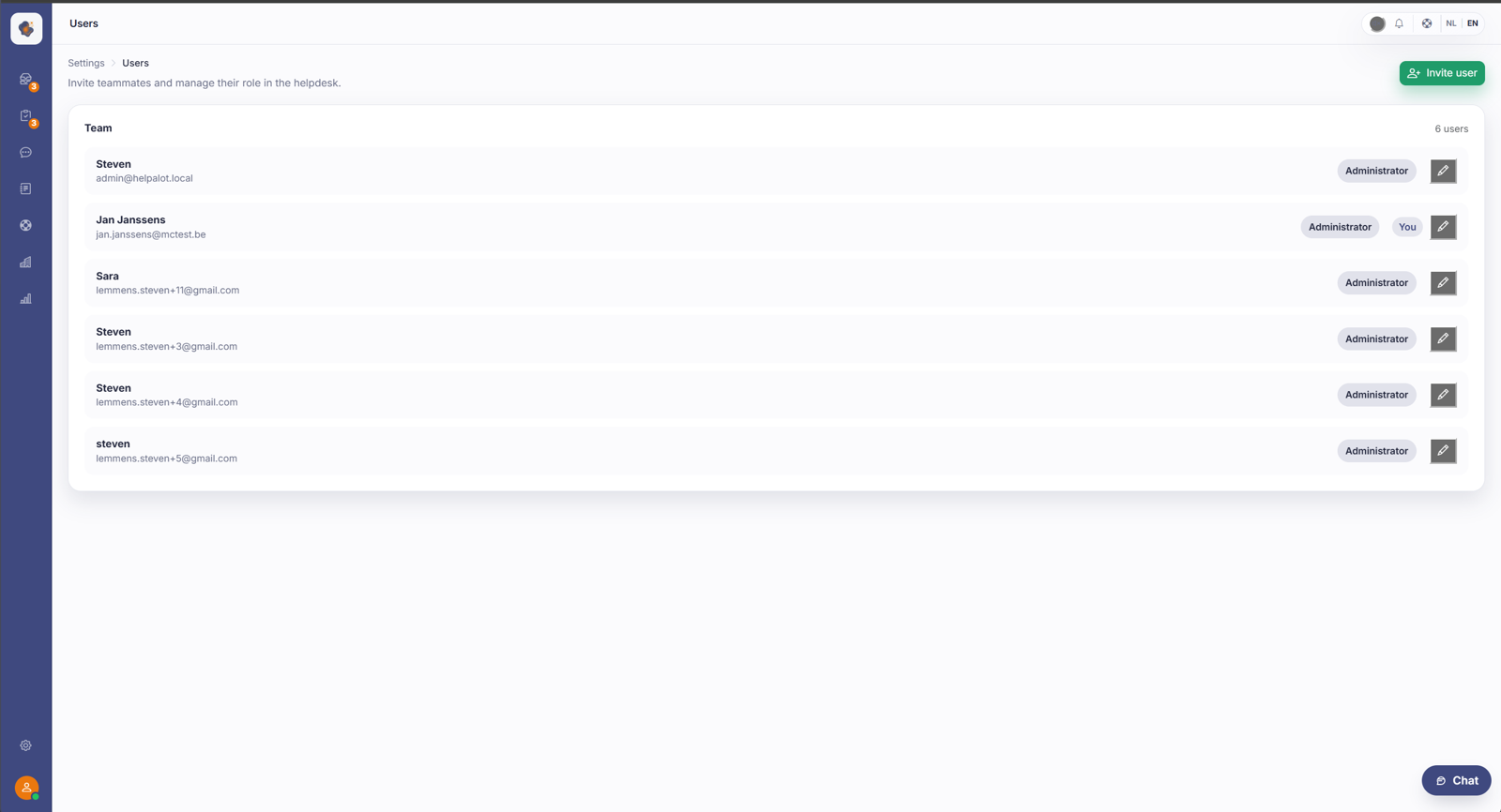
Short answer: go to Settings → Users and click Invite user to add a colleague. In the list, you change each team member's role with the pencil icon.
Step by step
- Open Settings and choose Users.
- Click Invite user at the top right and enter your colleague's email address.
- In the Team list you see each member with their role (for example Admin). Your own account is marked with You.
- Click the pencil next to a user to change their role.
Good to know
The role you give someone determines what they can do, see Roles and permissions. Don't hand everyone the highest rights by default; grant what someone needs. A role change usually only takes full effect after the colleague signs in again.
A few things that aren't obvious. The invitation link is valid for a limited time (about a day). If it has expired, do not invite again. That fails with "email address already exists" because the account has already been created. Instead, have the colleague set a password through Forgot password. An email address can only belong to one Sarrai workspace.
Be careful with the last admin: nothing stops you from demoting the only admin, which would leave no one able to invite or manage roles. The block and delete buttons do guard your own account, a role change doesn't.
Next to every colleague with two-step verification sits a green 2FA badge. If someone is locked out with no device and no recovery codes, you can turn theirs off as an admin; see Turning off a colleague's two-step verification.
Removing someone's access: block or delete
When a colleague leaves, or someone has to be locked out for a while, there are two buttons with different purposes.
Block locks the person out but keeps their account in the list, labelled blocked. Use this when the door has to close temporarily, or when you may want to unblock later.
Delete takes the person out of the list and asks for an extra confirmation. Meant for someone who's gone for good.
Both are for admins only, only for colleagues inside your own workspace, and never on your own account. That last part is deliberate: it stops the last admin from locking themselves out. If your own account has to go, you need a second admin to do it.
What to expect from blocking and deleting
Five things you can't see on the button, and they make the difference between a clean handover and a confused colleague.
The person is out immediately. Both actions end all their active sessions and remembered sign-ins on every device. If they're in the app at that moment, their screen signs itself out within about half a minute. So warn them if they're in the middle of a conversation.
They get no explanation. A blocked or deleted colleague who tries to sign in gets the same generic error as a wrong password, on every sign-in route. That's on purpose, so an outsider can't work out whether an account exists. The consequence for you: they'll think they forgot their password. That explanation has to come from you.
Unblocking notifies nobody. No message goes out and they don't need a new password. They can simply get back in without knowing anything had changed, so let them know yourself.
Deleting erases nothing and doesn't free up the email address. The account keeps existing behind the scenes, so their name stays readable everywhere they did work: as the author of articles, in the version history, on their messages and internal notes, and in the timeline of conversations. A history without names doesn't read. But it also means inviting the same person again later fails with "email address already exists". If you're unsure whether someone will come back, block them rather than delete them.
Only deleting frees up a seat. On a plan with a limit on the number of users, a blocked account still counts towards that limit. See How does Sarrai's pricing work?
Also searched as
"add a colleague", "give someone access to the helpdesk", "invite an agent", "change a user's role", "remove access for a colleague who is leaving", "block a user", "delete an account", "email address already exists when reinviting"
See also
Was this article helpful?
Your feedback helps us improve this article.
Thanks for your feedback!
