
Inserting a link
Select text and click the link button. Choose an external URL or a help center article from the content tree. Internal links keep working, even if you rename an article.
Short answer: first select the text you want to link and click the link button in the toolbar. In the dialog you choose between a URL (for something outside the help center) or a help center article. Then click Insert link.
Linking to an external URL
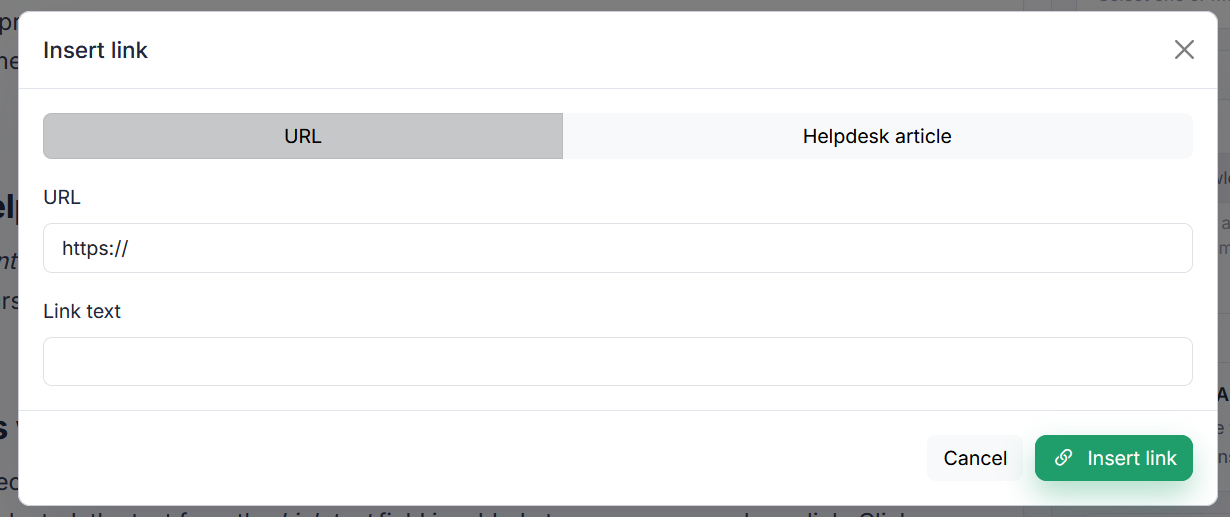
On the URL tab you provide two things: the address under URL and the visible text under Link text. Handy for pages outside your help center, such as your website or an external source.
Linking to a help center article
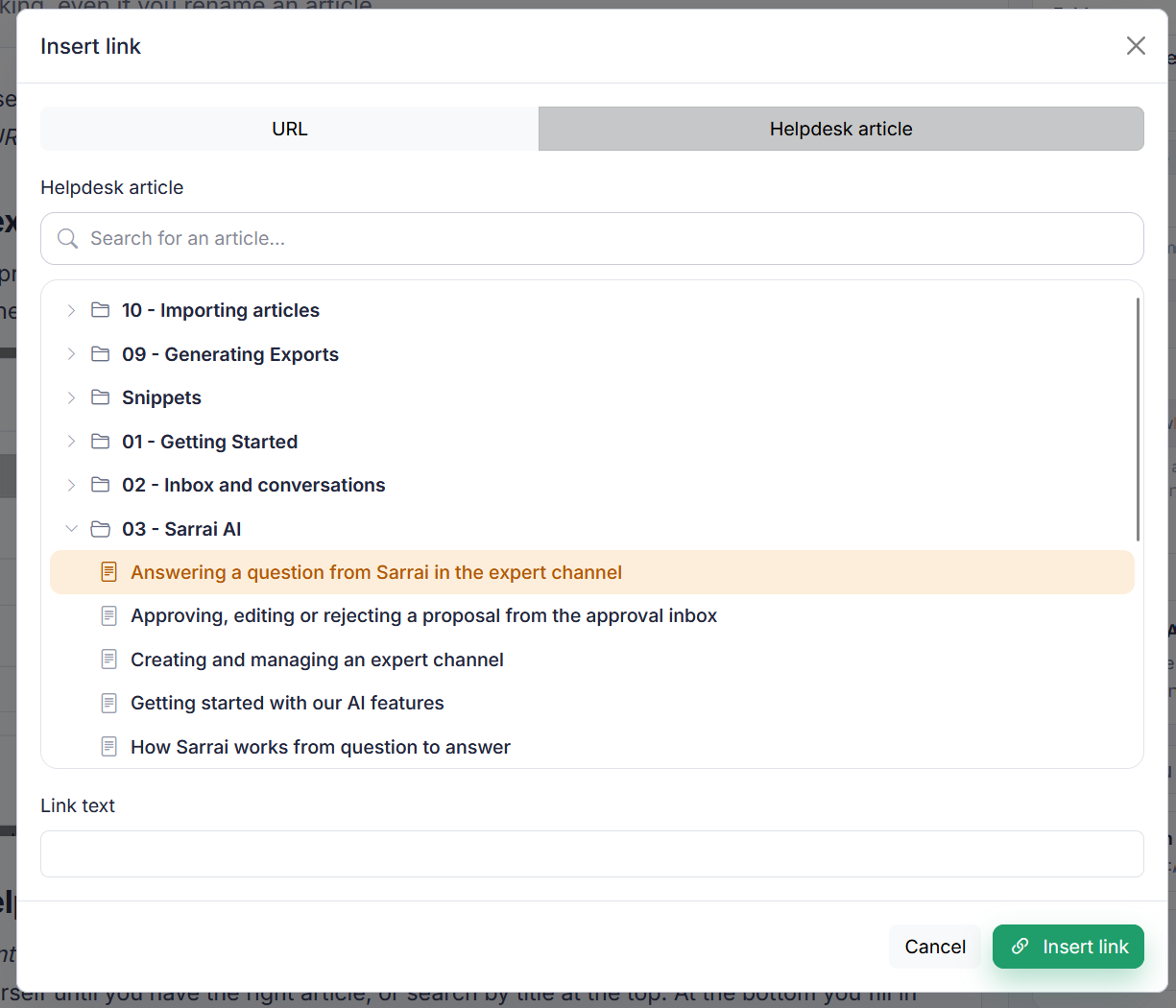
Choose the Help center article tab. You'll see the full content tree with a search field at the top. You can click through the tree yourself until you have the right article, or search by title at the top. At the bottom you fill in the link text.
What happens when you click
If you started by selecting text, it's already filled in as the link text and the selected text becomes a hyperlink. If you had nothing selected, the text from the Link text field is added at your cursor as a hyperlink. Click Cancel and the dialog closes with nothing changed.
An internal link survives a rename
When you pick an article from your own knowledge base, Sarrai doesn't store the URL but a reference to the article itself. Only when the page is shown does it look up the matching slug and build the real address. So if the target's slug changes later, your link keeps working and there's nothing to update.
Two cases where the link does nothing anyway
That conversion is strict, and that's exactly where it goes wrong.
If the target isn't published, the link becomes a dead anchor. The text still looks clickable but nothing happens. You are allowed to pick an unpublished article in the picker, with a Draft or Archived label next to it, so you can write a set of articles into each other before publishing them. But as long as the target stays a draft, it's a dead link for your visitor and it shows up in Broken links with the reason "target article not published". Publishing fixes it.
The conversion happens per language. If a visitor views your article in English, Sarrai looks for the English translation of the target. If that doesn't exist, it becomes a dead anchor there too, while the same link works fine on the Dutch version. An internal link is therefore only as complete as its target's translations. Translate an article but not the articles it points to, and your visitor is left with a page full of dead anchors in that language. See Offering an article in multiple languages.
One more thing you'll notice while picking: snippets aren't in the list. That's not an omission. A snippet doesn't exist as a public page, so a link to one would lead nowhere. See Article or snippet: which do you pick?
Editing an existing link
Put your cursor inside an existing link and a small floating menu appears with Edit link and Remove link. So you no longer have to select the link text precisely: Edit reads the whole link and opens the dialog fully filled in, even if your cursor sat in just one word of it.
The dialog also starts clean every time. Previously the last choice stayed behind, which made a new link look pre-filled with the details of the previous one. Editing several links in a row, the second one would then point to the first one's destination by accident.
Also searched as
"how do I link to another article", "make an internal link", "change link text", "add a url to an article", "link through to help center"
See also
Was this article helpful?
Your feedback helps us improve this article.
Thanks for your feedback!
