
Setting up your workspace and theme
Learn how to set up your workspace and determine a theme for all users in the Workspace.
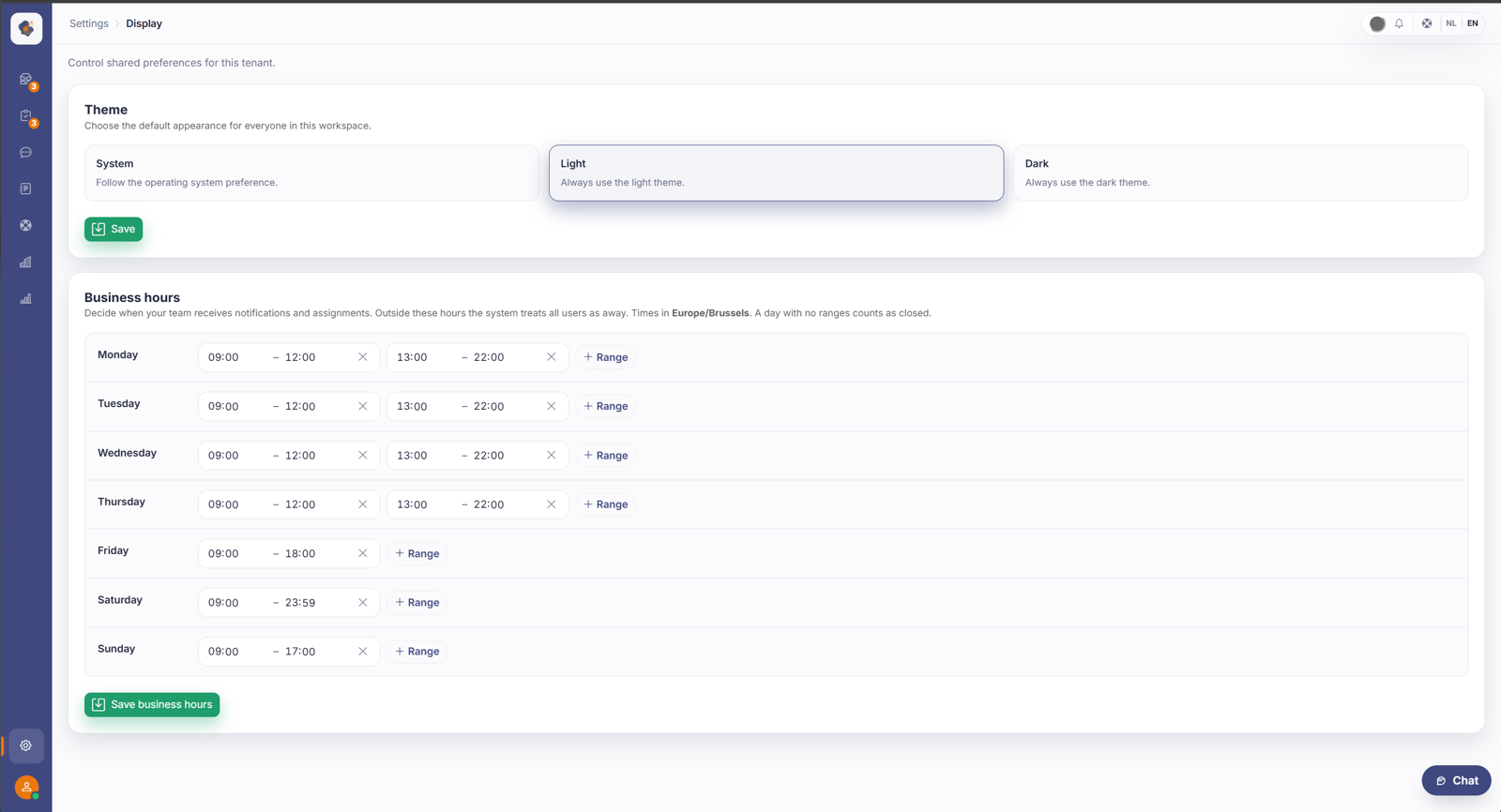
Short answer: go to Settings → Workspace to manage the theme and the shared preferences of your workspace. These are settings that apply to your whole organisation within the back office.
What's here, and what isn't
The workspace page really holds two things: the theme (light, dark, or follow system) and the opening hours of your organisation. Those opening hours matter more than they seem, they steer when Sarrai checks with a colleague and when your team gets notifications and assignments. See Setting opening hours.
Two things you won't find here: your personal presence status (you set that in the profile menu) and the default assignment of escalated conversations (that's in the chat settings, see Setting the default assignment).
Good to know
Mind the difference: the brand styling of your public help center (logo, colours for your visitors) is set elsewhere, in Setting up your help center's brand styling. The workspace is about the back office that you and your team use.
Also searched as
"theme of the back office", "dark mode", "appearance of the workspace", "set up shared preferences"
See also
Was this article helpful?
Your feedback helps us improve this article.
Thanks for your feedback!
